
Work orders and engineers
For repairs, a case can carry work orders - the actual repair jobs - which you do yourself or hand to an outside partner (a repair shop). Work orders need the Starter plan or higher; partners need Pro.
Create a work order
- Open the case.
- On the Actions card press Create work order (optionally link a partner first with Link repair partner).
- The work order appears in the case's Work orders card with its own status: queued -> assigned -> diagnosing -> waiting parts -> repairing -> QA -> ready for return -> done (or unrepairable / cancelled).
- Move it through stages from inside the work order block; add log entries (what was done, minutes, parts and their cost) and a diagnosis.
Repair partners (Pro)
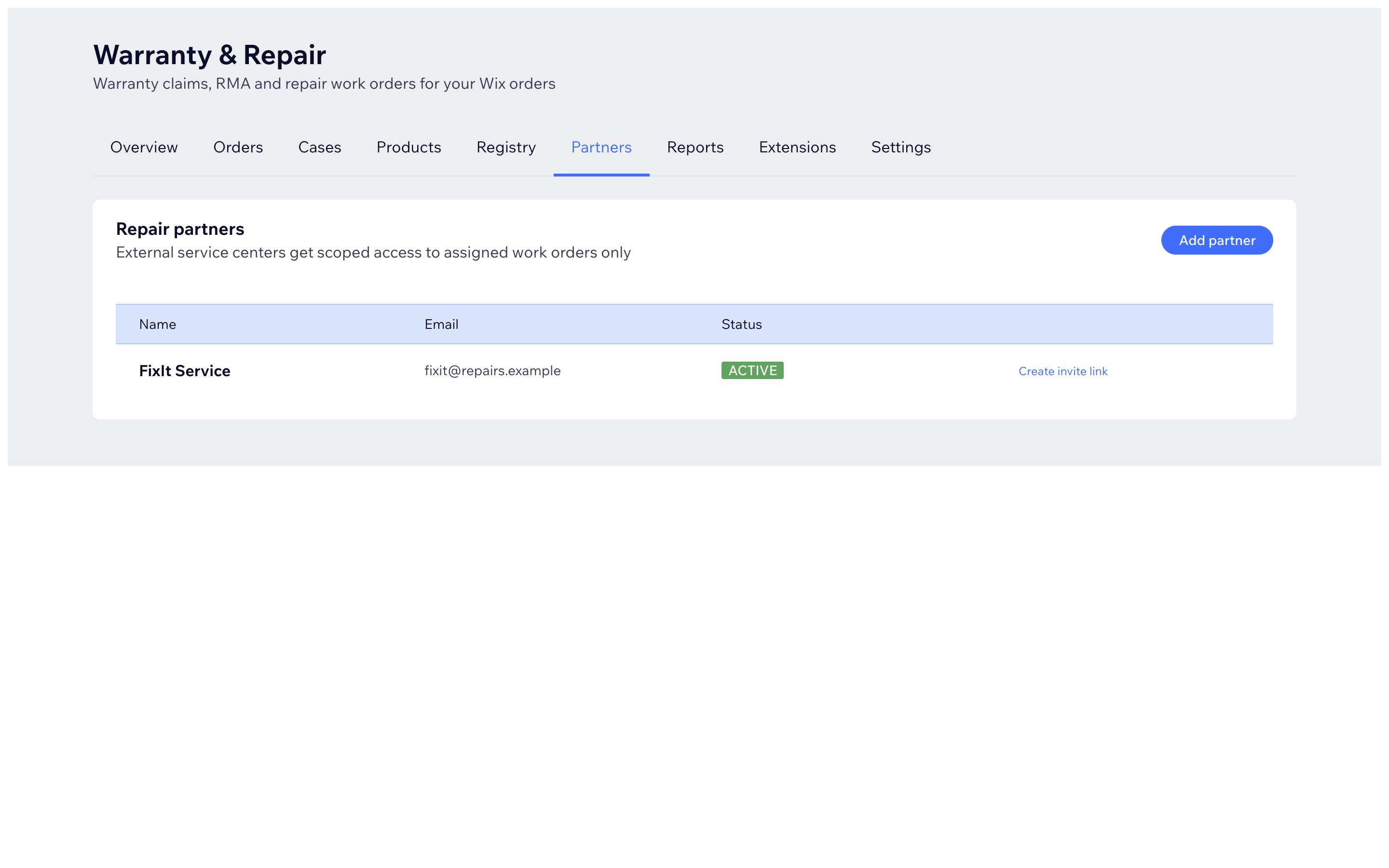
- Partners tab -> Add partner - name and contact email.
- Press Invite on the partner row - they get an email with a link.
- The link opens the partner portal: a short list of only the work orders you assigned to them - never your cases or customer list.
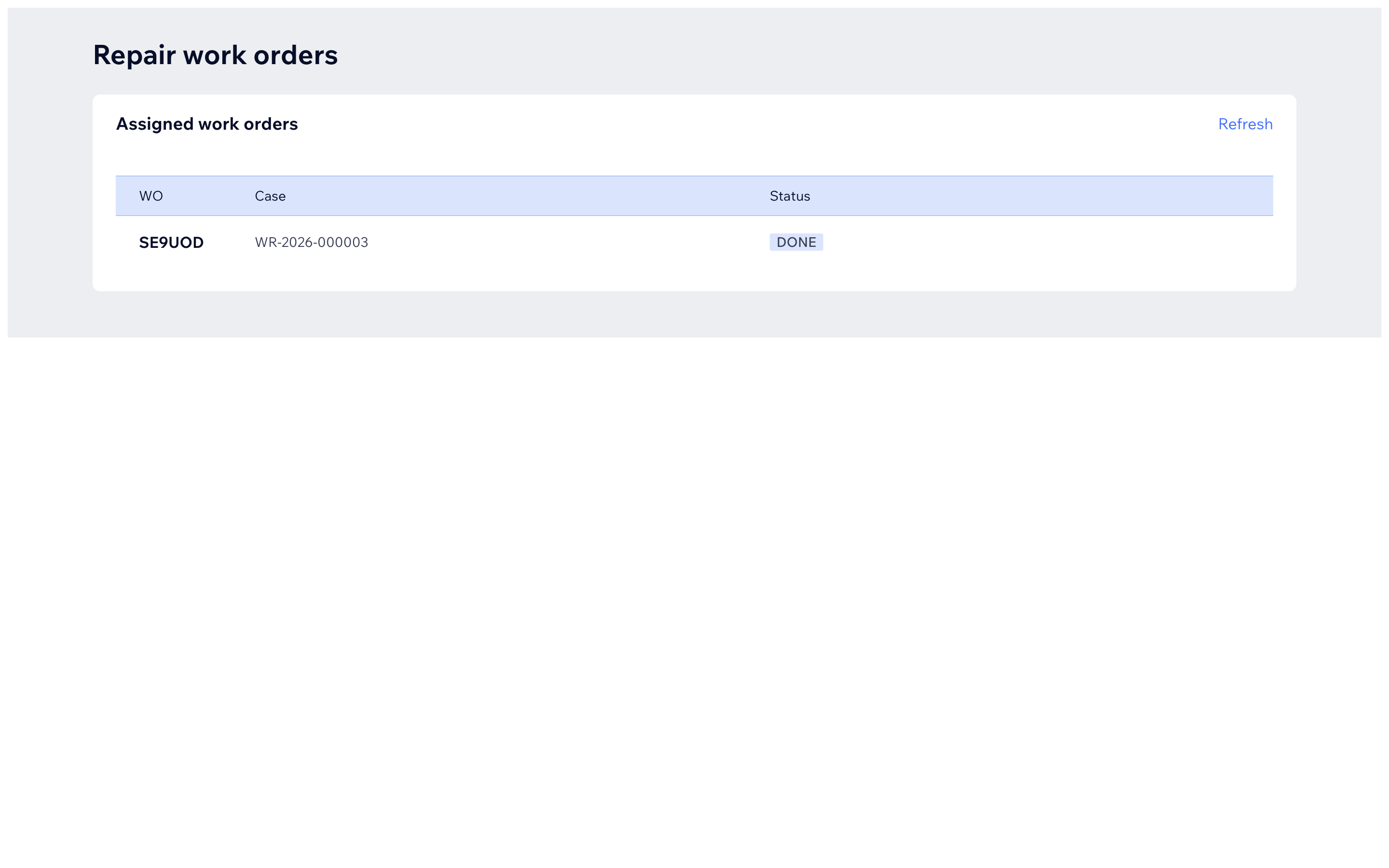
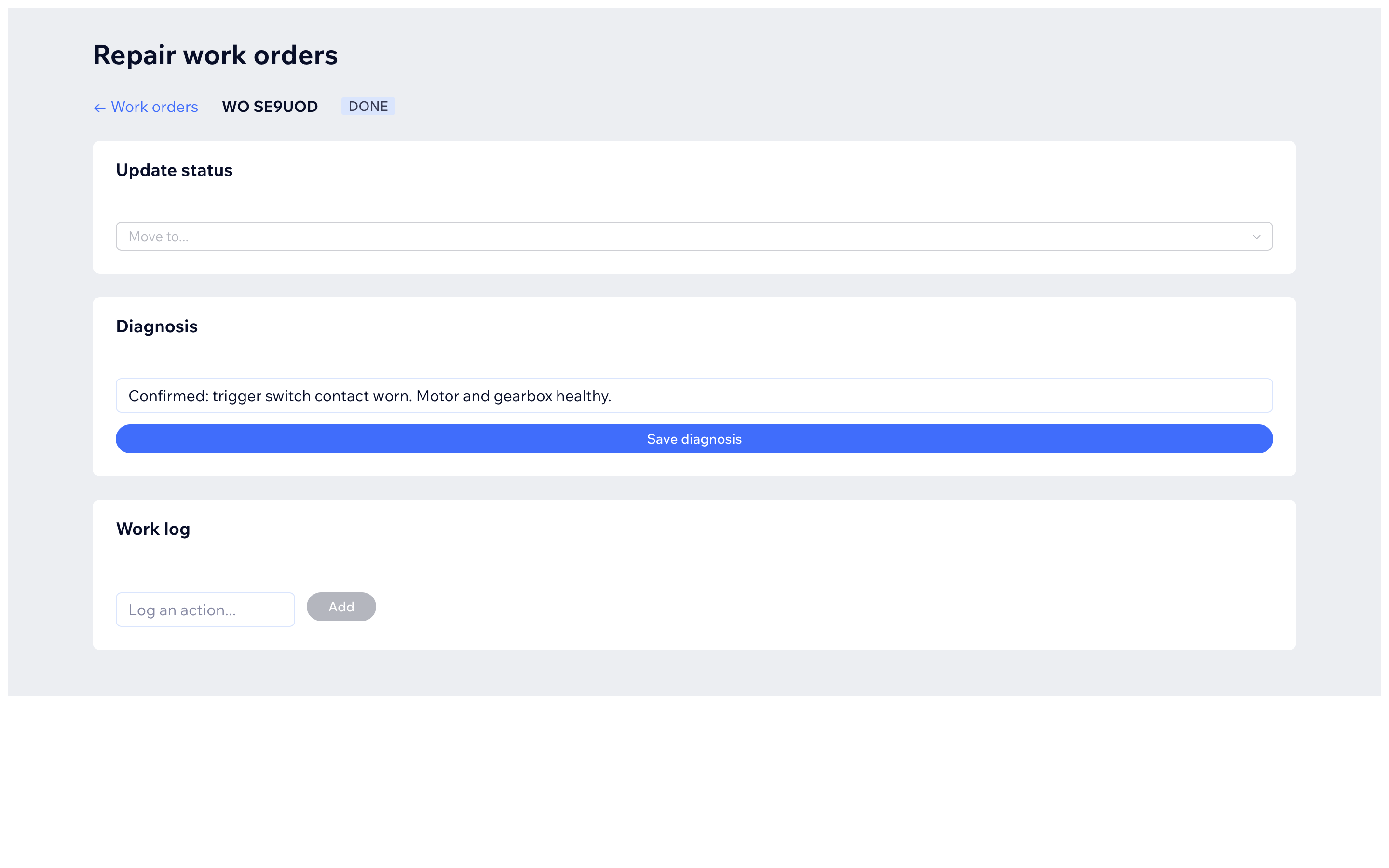
Partners update status, write the diagnosis, and add work-log lines from that page. You see everything in the case as it happens.
Engineer visit reports
Field engineers can file a visit report onto a case two ways:
- By hand - open the case -> Engineer reports -> Add report and fill in engineer name, visit date, findings, work done and parts used.
- From a Wix Form (optional, advanced) - your existing engineer form can post each submission to the app, which files it on the right case automatically when the form includes a case number, order number or serial. Setup lives in Settings -> Engineer visit forms; the full recipe is in Optional integrations.
Submissions that cannot be matched wait in Cases -> Unmatched engineer reports for you to link by case number or mark ignored.
Reports are staff-only by default - customers see one on their portal timeline only when you mark it public.