
Store, orders and products
How the app connects to your Wix store and where everything lives.
Orders
New orders arrive automatically after install (the app is notified by Wix). For older orders, or if something looks missing:
- Open the Settings tab.
- Scroll to Connection & data.
- Press Sync orders now.
The Orders tab lists orders with buyer email, payment and status:
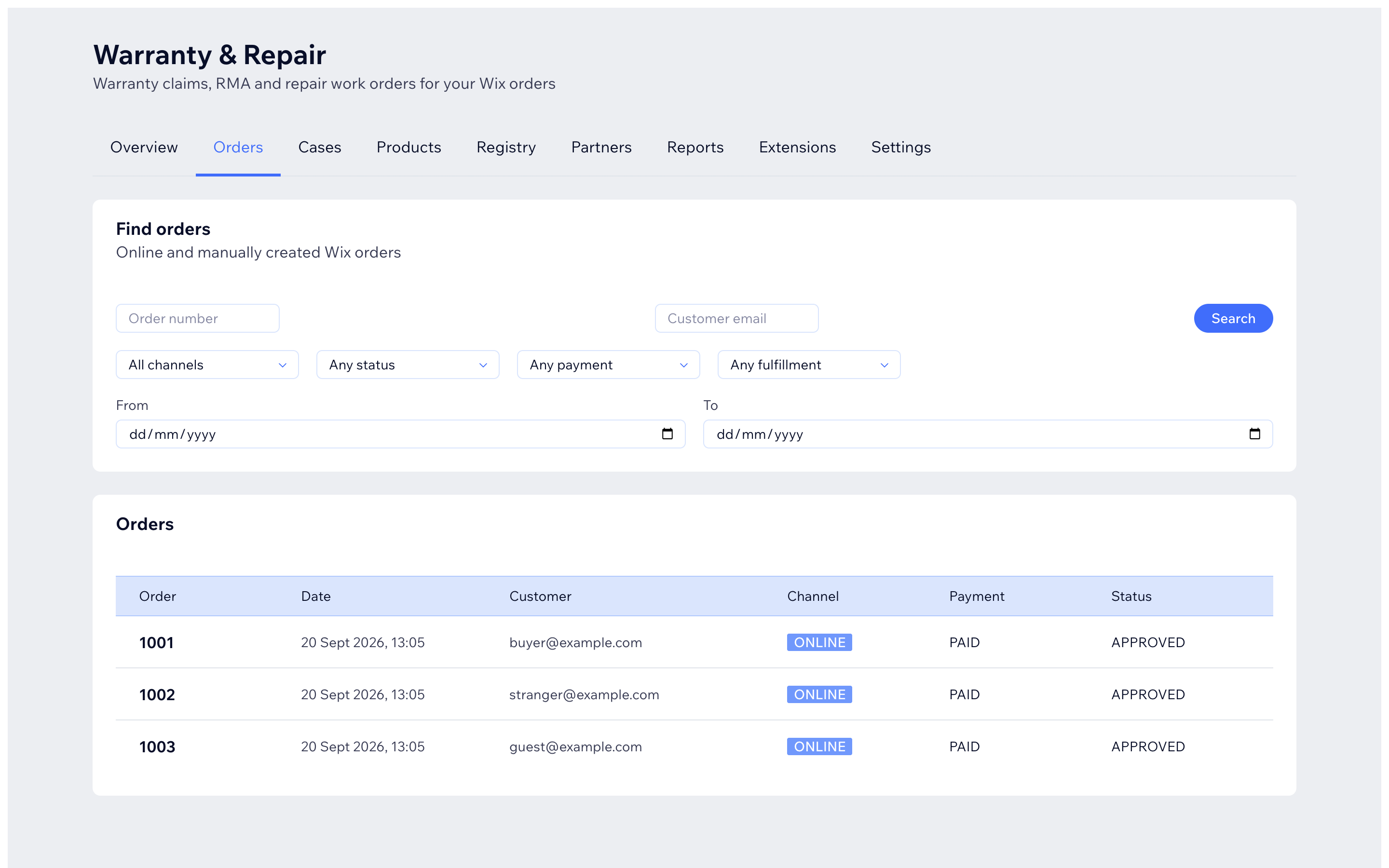
- Search by order number or customer email.
- Filter by channel, order status, payment status and fulfillment status.
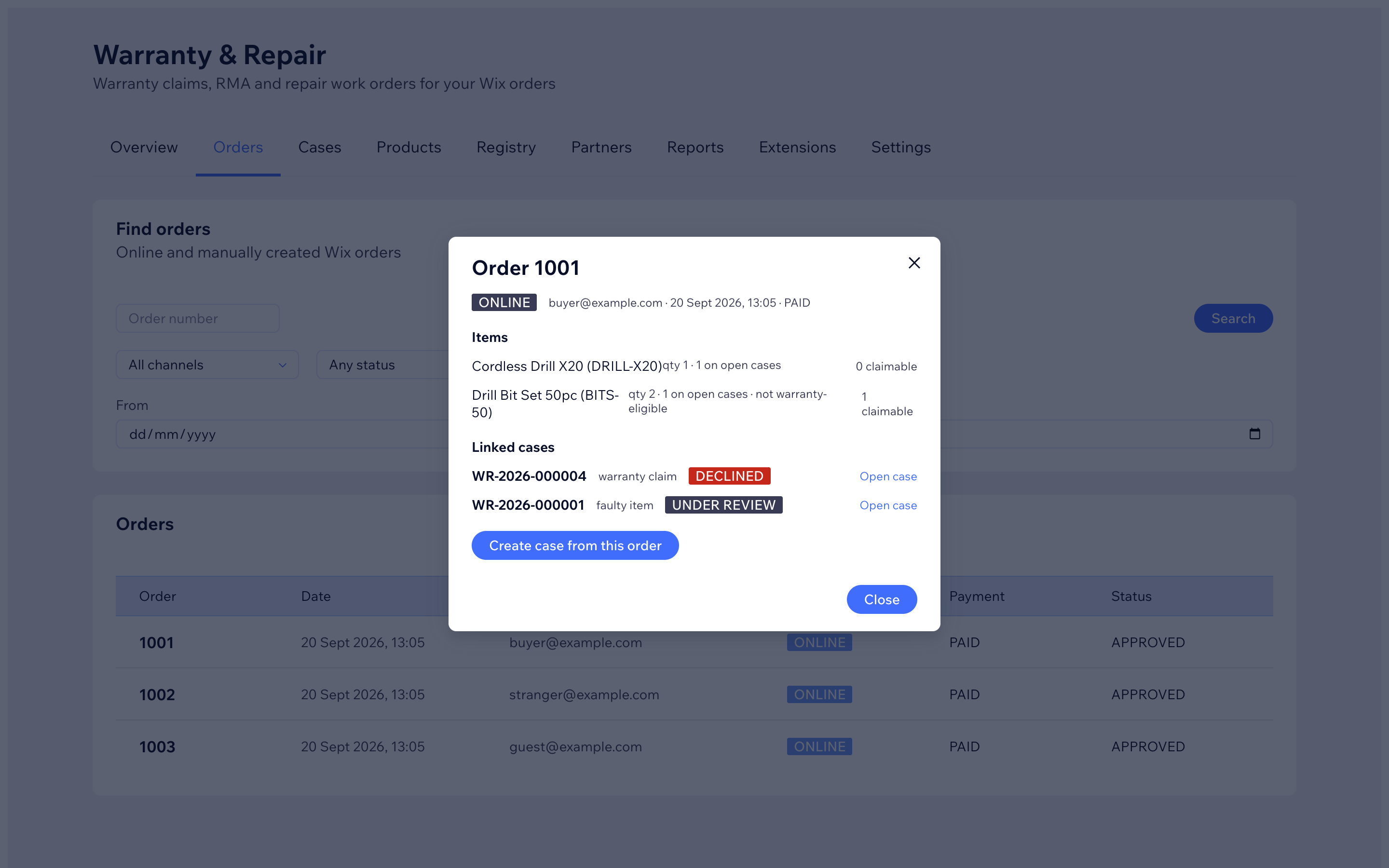
- Click an order to open it:
Products and the catalog
The Products tab shows your Wix catalog. Press Sync catalog to refresh product names, variants and categories from your store:
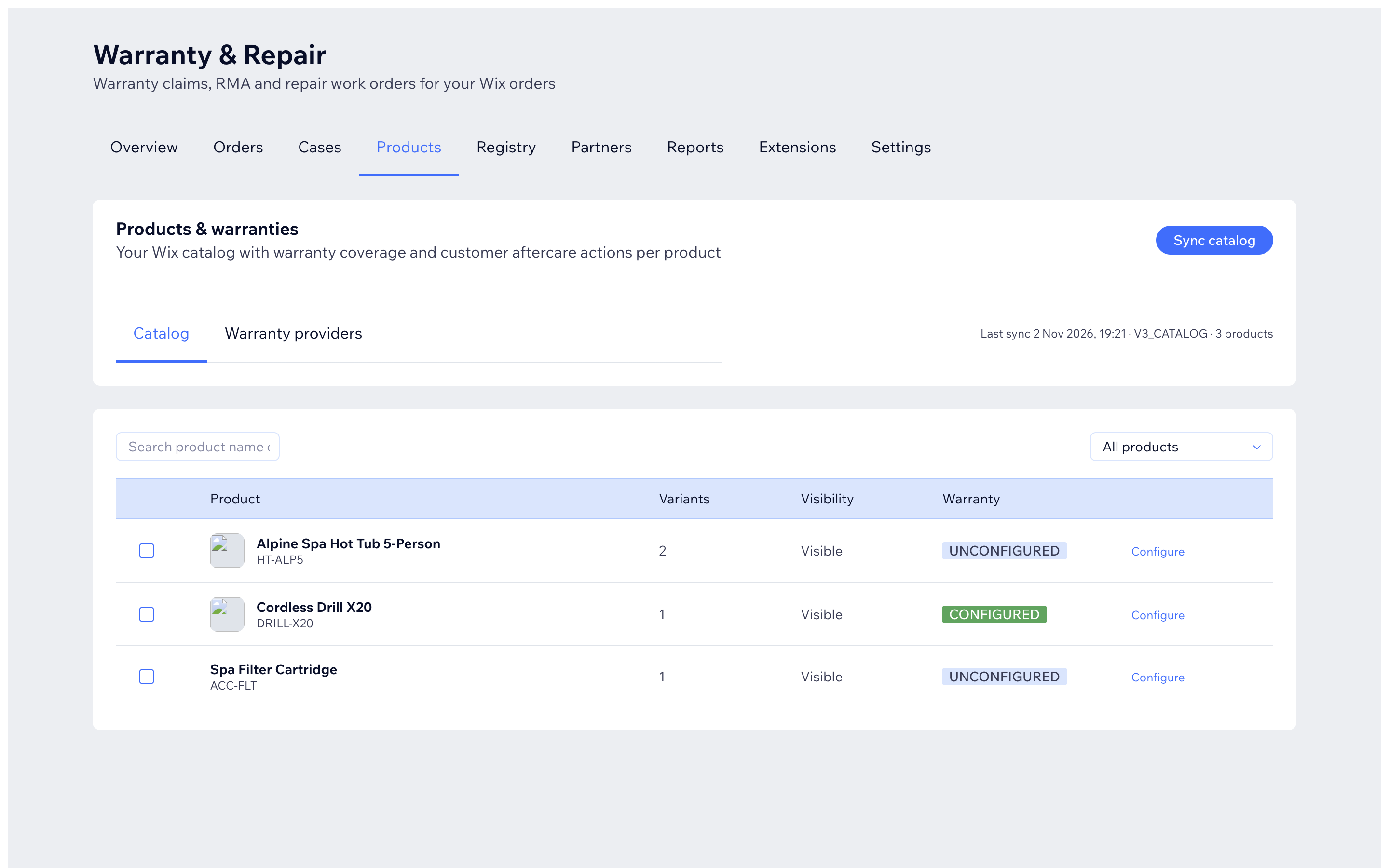
For each product you can see its warranty state:
- CONFIGURED (green) - a warranty rule covers it.
- UNCONFIGURED - no rule decides yet; the default setting applies.
- EXCLUDED - you marked it as "no warranty".
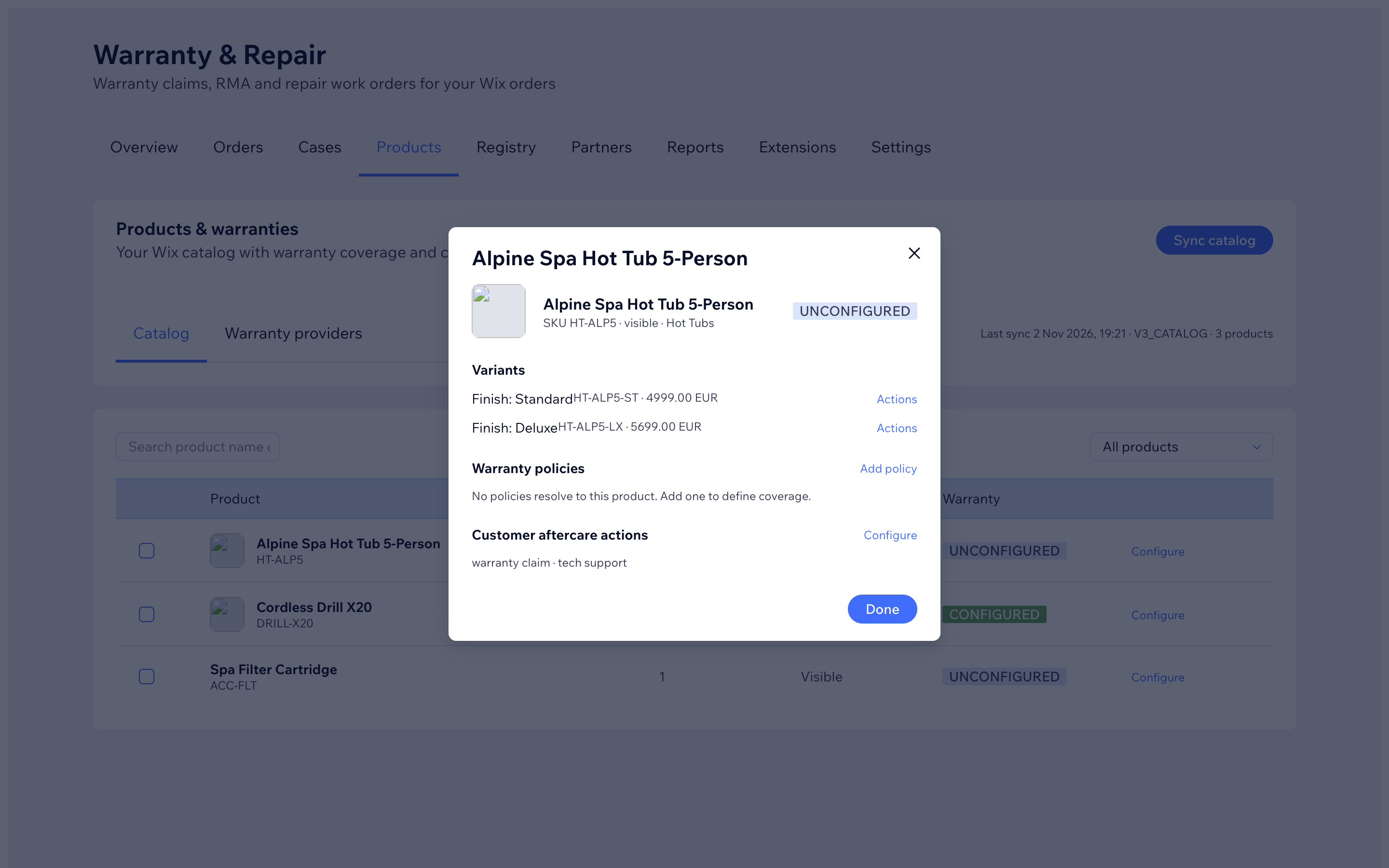
Click Configure on a product to open its detail, where you manage warranty policies and the help actions customers see for that item.
The second tab, Warranty providers, lists the companies that stand behind coverage (for example the manufacturer). You can Add provider and later link it to a warranty policy - useful when a supplier, not you, does repairs.
Where to go next
- Set coverage length and rules: Warranty rules and coverage
- See how serial numbers are kept: Product registry