
Email notifications
The app emails customers at the moments you choose, with wording you control. All settings are in Settings -> Customer email notifications.
Step by step
- Set your Support email in Settings -> Workspace first - replies and test emails go there.
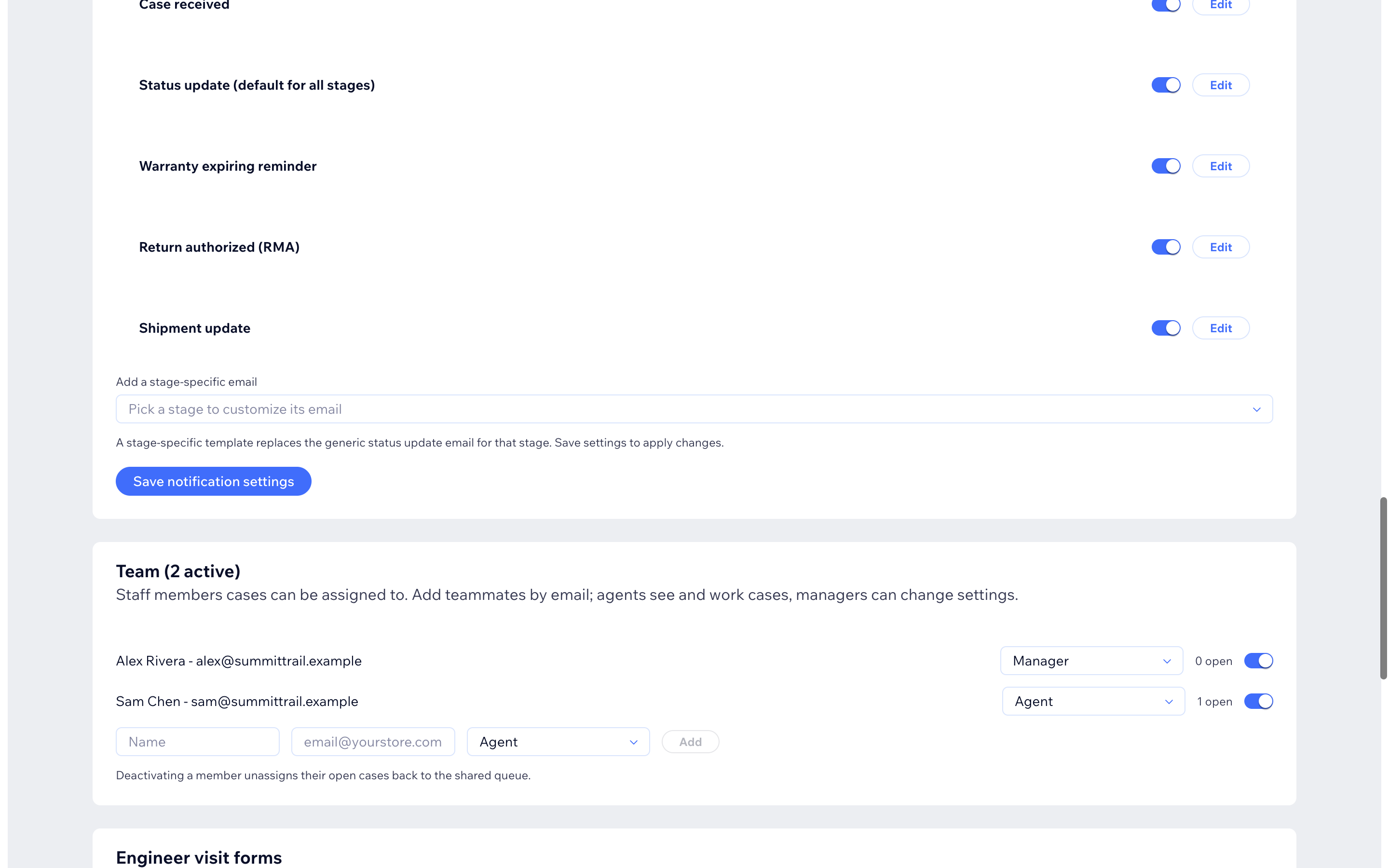
- Under Email the customer when a case moves to, tick the stages that should send an email. The default set is: needs info, resolution ready, shipped, delivered, declined, closed.
- Under Email templates, press Edit on any template to change the
subject and text, then Save notification settings.
- Use
{{placeholders}}like{{caseNumber}},{{status}},{{businessName}}- the app fills them in per customer. - Turn a template off with its switch instead of deleting it.
- Revert to default restores the built-in text.
- Use
- Want a different email for one stage (for example a special "resolution ready" text)? Pick it in Add a stage-specific email and edit its copy - it replaces the generic status email for that stage only.
- Press Send test email on a template - the test goes to your support address, never to a customer, and uses your last saved text.
The built-in emails
| Template | When it sends |
|---|---|
| Case received | A new case is opened |
| Status update | The case moves to a ticked stage (default for all stages) |
| New message on a case | You write to the customer |
| Return authorized (RMA) | You issue an RMA |
| Shipment update | A return shipment is recorded |
| Warranty expiring reminder | Coverage is about to end |
| Claim verification code | A guest asks for a tracking code (always on - it is the login) |
| Repair portal access | A partner is invited |
Every email sent for a case is listed on the case page under Customer emails with its delivery status (sent, failed, suppressed), so you can always answer "did the customer get it?"