
Warranty rules and coverage
This is how you tell the app which products have warranty, for how long, and from which date.
Where the settings are
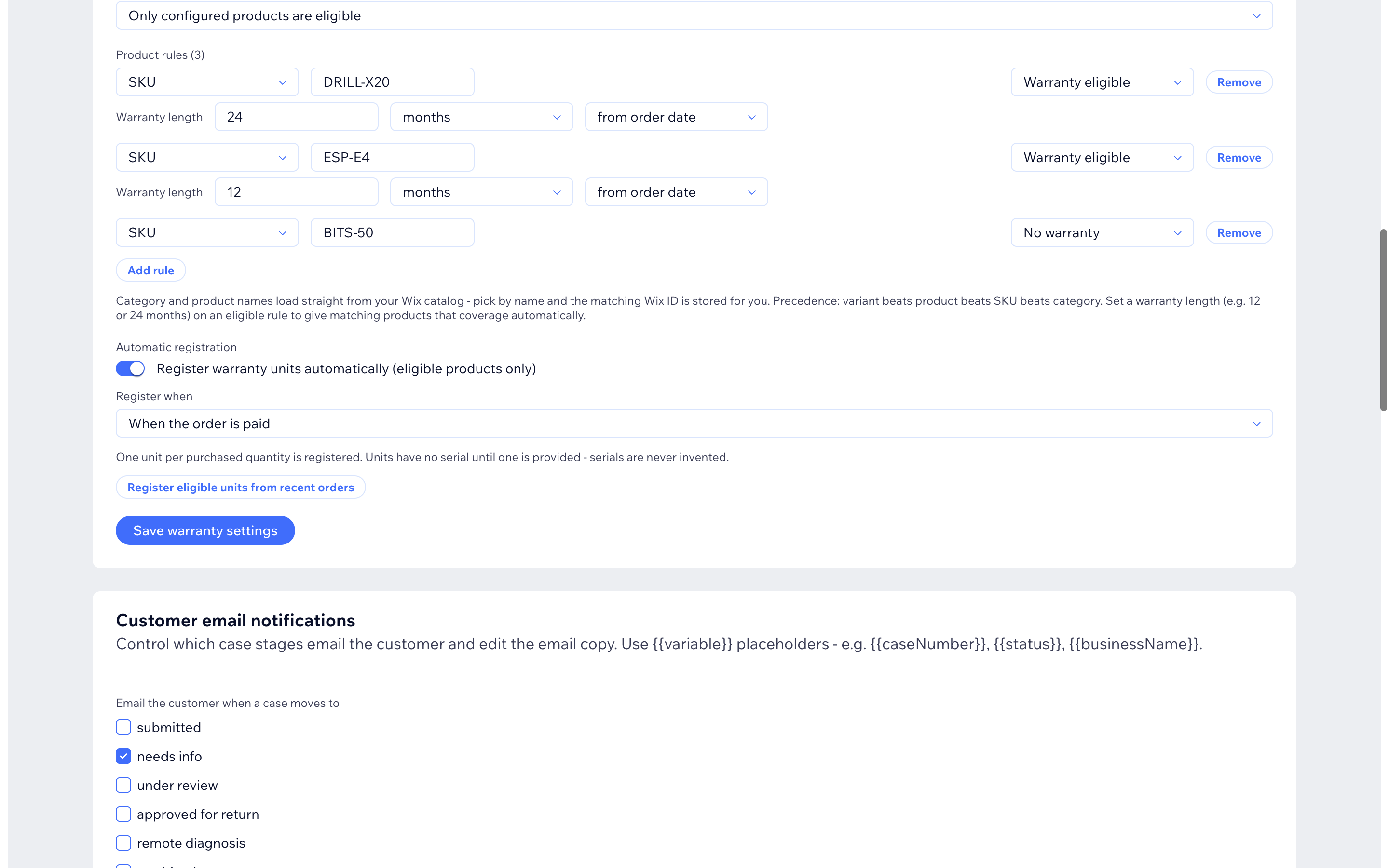
Open Settings -> the Warranty products card:
Step by step
- Pick the default for products with no rule:
- All products eligible unless excluded - everything is covered by default; you only mark exceptions.
- Only configured products are eligible - nothing is covered until you add a rule. Safer if only some products have warranty.
- Press Add rule and fill in the line:
- Scope - what the rule matches: Category (collection), Product ID, Variant ID or SKU. Category is the easiest if your warranty matches your store categories (e.g. "Hot Tubs 12 months, Accessories 24 months").
- Name / ID - pick the category or product by name. If names have not loaded yet, press Sync catalog on the Products tab first - or paste the ID directly.
- State - Warranty eligible or No warranty.
- For eligible rules set the warranty length: a number plus days,
months or years, and when the clock starts:
- from order date (most common), from delivery, from installation, or from activation.
- Press Save warranty settings.
If several rules could match, the most specific wins: variant beats product, product beats SKU, SKU beats category.
What customers see
On the portal, each covered product shows its coverage as plain text - for example "Active, from 20 Sept 2026 until 20 Sept 2028" - together with your statutory-rights and returns texts (you write those in Settings -> Workspace). If a date is missing (e.g. delivery date unknown), coverage shows as pending rather than a made-up date.
Tips
- Rules with a warranty length automatically give coverage dates to matching purchases.
- Marking a product No warranty only stops commercial warranty claims - customers can still open support requests, and their legal rights are never blocked.
- If you rename or delete a category/product in Wix, re-pick it in the rule - the app warns you when a stored ID no longer matches your catalog.