
How to remind customers about unpaid WooCommerce orders
An unpaid order usually ends one of two ways: the stock hold expires, or the customer forgets. A short reminder sequence adds a third option that recovers a surprising share of them.
This guide covers why pay-later orders stall, when to send the first reminder, a WooCommerce payment reminder sequence that works in practice, what to write, and how to automate it without accidentally spamming old orders.
Why unpaid orders happen (and what they cost)
Most unpaid orders are not refusals. They are interruptions: the customer meant to make the bank transfer and got distracted, the invoice sits in someone's approval queue, or the card failed and nobody told them. A smaller share never intended to pay at all - bots, test orders, and buyers who changed their mind without cancelling.
The cost is easy to underestimate. An unpaid order does more than sit in the list:
- It holds stock. While the order sits On hold or Pending, the items are reserved and cannot be sold to someone else.
- It distorts your numbers. Unpaid orders inflate order counts and make fulfilment queues harder to scan.
- It expires silently. If the stock-hold timer cancels the order before anyone follows up, a sale that needed one email is gone.
Pay-later methods (bank transfer, invoice, cheque) are where this concentrates, because those orders exist specifically to be paid later.
What does a reminder recover? It varies by store and product, but merchants who add a sequence typically see a meaningful share of previously dead orders complete - the ones that only needed the payment details in front of them again. Even modest recovery is almost free revenue: the order already exists, the stock is already allocated, and the only cost was an email.
When to send the first reminder
The right delay depends on how the customer chose to pay:
| Payment method | Suggested first reminder | Why |
|---|---|---|
| Bank transfer | 24-48 hours | Bank transfers are genuinely slow. Earlier feels pushy. |
| Invoice | 2-3 days | Business customers batch approvals; a nudge helps. |
| Cash on delivery | Rarely | The order is not unpaid, it is undelivered. |
| Failed card / gateway error | 1-4 hours | The customer often does not know the payment failed. |
Two rules sit behind the table:
- Match the delay to the method's natural speed. A bank transfer reminder at hour two accuses the customer of being slow when their bank is. A failed-card reminder at day three arrives after the customer has already bought elsewhere.
- An unpaid order reminder email is a nudge, not a demand. The first message assumes forgetfulness. The escalation comes later, if it comes at all.
One deadline matters more than any of these: your stock hold. In WooCommerce → Settings → Products → Inventory the "Hold stock" timer cancels unpaid orders automatically. Send at least one reminder well before that limit, or the order disappears before any sequence can work. If your hold is 60 minutes - the WooCommerce default - the window is so short that a reminder sequence barely fits; raise it to 24-72 hours if your store lives on pay-later methods.
The WooCommerce payment reminder sequence that works
Three short steps beat one long nagging thread:
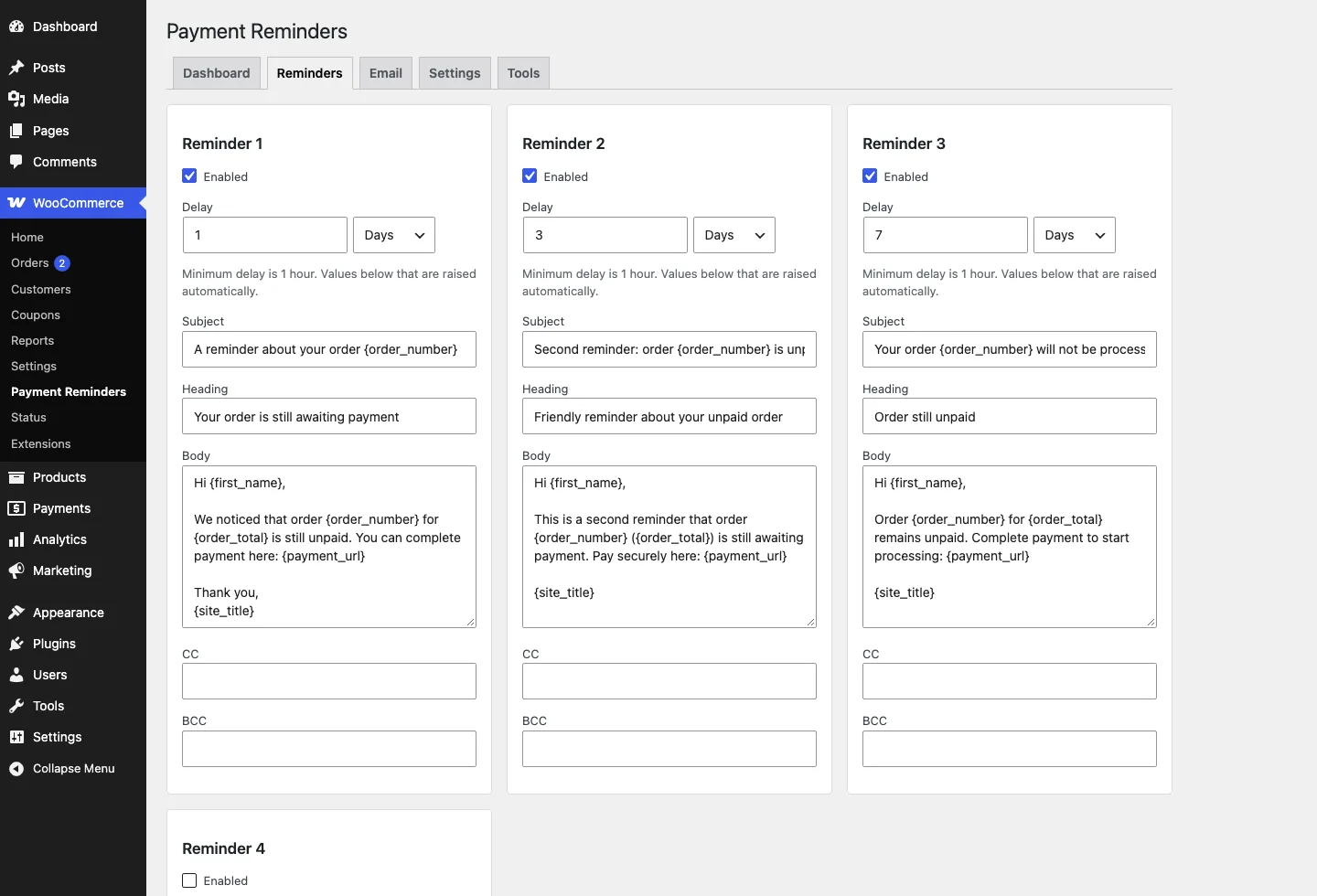
- Step 1 (gentle, 24-48h): "Your order is reserved" - restate what they ordered and give a direct payment link. Assume they forgot, not that they refused.
- Step 2 (3-4 days): "Still waiting on payment" - same order summary, mention the deadline honestly if one exists, offer a reply path for questions.
- Step 3 (6-7 days): "Last reminder before the order is released" - short and factual. Tell them the stock or price hold ends soon and link the payment page once more.
A few details make the sequence work instead of backfire:
- Each step sends at most once. If step 2 already went out, it never goes out again for that order - even if the order status flickers back and forth.
- Every step checks payment first. The sequence stops the moment the order is paid. Nothing damages trust like a "still waiting" email to someone who paid yesterday.
- Old orders get skipped. An order untouched for 30 days is not a reminder candidate; it is a cancellation candidate.
- Tone escalates, length does not. Each message is shorter and more factual than the last. The third one reads like a statement, not a plea.
What to put in the email
Keep each message under 120 words. A reminder that takes effort to read gets ignored.
Do:
- Subject: include the order number and your shop name ("Order #1042 at Marta's Store - payment pending"). Order numbers get found in inboxes; clever subjects do not.
- Body: order number, item list or total, a single payment link, and a way to reply. One link, not three - every extra link splits attention.
- Repeat the payment instructions. For bank transfer that means the account details again; half of unpaid BACS orders are "I meant to, then lost the sort code".
- State the deadline honestly. "The order is released on Friday" works when it is true. A fake deadline burns the next real one.
Do not:
- Apologize for asking. You are holding stock for them; the reminder is a service.
- Threaten or lecture. "Per our terms" language converts forgetful customers into annoyed ones.
- Add discount pressure on the first email. If you want a discount nudge, keep it for the last step only - otherwise the lesson your store teaches is "wait and the price drops".
A first-step email can be as plain as this:
Subject: Order #1042 at Marta's Store - payment pending
Hi Anna, your order #1042 is reserved and waiting on the bank transfer. You can complete it here: [pay link]. If you already paid, ignore this - it can take a day to clear. Questions? Just reply.
Ninety words, one link, no pressure. That is the whole craft.
Automating it safely in WooCommerce
WooCommerce has no built-in reminder system, so the work is done by a plugin or custom code. Whatever you use, look for three behaviors:
- Per-gateway rules. Reminding a "processing" Stripe order makes no sense; eligibility should check status and payment method together.
- A dry-run preview. Before anything sends, you should see exactly which orders would be emailed. This is how you avoid emailing 400 old orders on day one.
- Protection for existing orders. Orders created before you turn automation on need an explicit backfill you run deliberately, or they should stay untouched.
The dry run deserves emphasis because it is the step everyone skips once. Install the tool, configure the sequence, then run the preview before enabling anything - and actually read the list. If an order on it would surprise or embarrass you, the eligibility rules are wrong. Fix them while the only cost is a list you disagree with. When the preview contains only orders you would happily email, turn automation on and leave it alone for a week.
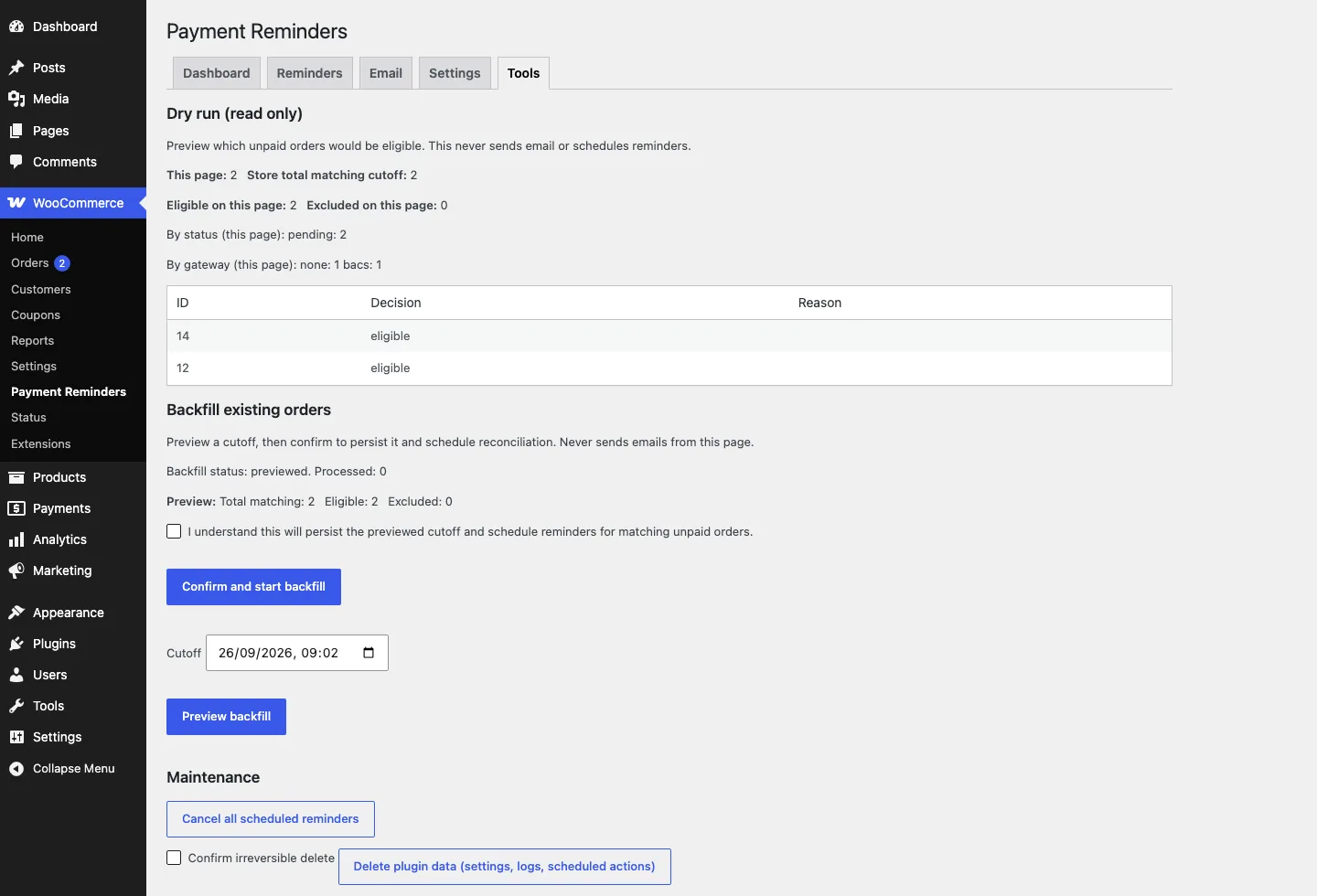
Our Payment Reminders plugin is built around exactly that pattern: automation stays off until you enable it, a preview shows every queued email before it goes out, and older orders only join after an explicit backfill you confirm.
When to stop and cancel instead
Not every unpaid order deserves infinite patience. After the last step you have two honest endings:
- Keep the order for a human. The right choice when orders are large or B2B - a €4,000 invoice deserves a phone call, not an auto-cancel.
- Auto-cancel and release the stock. The right choice when stock is limited, items are seasonal, or the order blocks a reservation timer.
If you auto-cancel, set it up deliberately:
- Cancel only after the last reminder has had time to work - a day or two, not an hour.
- Tell the customer. A short "we released order #1042" email both informs and occasionally revives the sale.
- Do not auto-cancel wholesale or repeat customers silently; flag those for manual review instead.
Whichever ending you choose, make it a rule rather than a mood. "Cancel 48 hours after the last reminder" is enforceable and auditable; "cancel when someone gets around to it" is how on-hold lists grow to three pages.
The sequence exists to save orders, not to fill the inbox. If a customer has ignored three honest reminders, a fourth one will not change their mind - it will only teach them to ignore your emails.